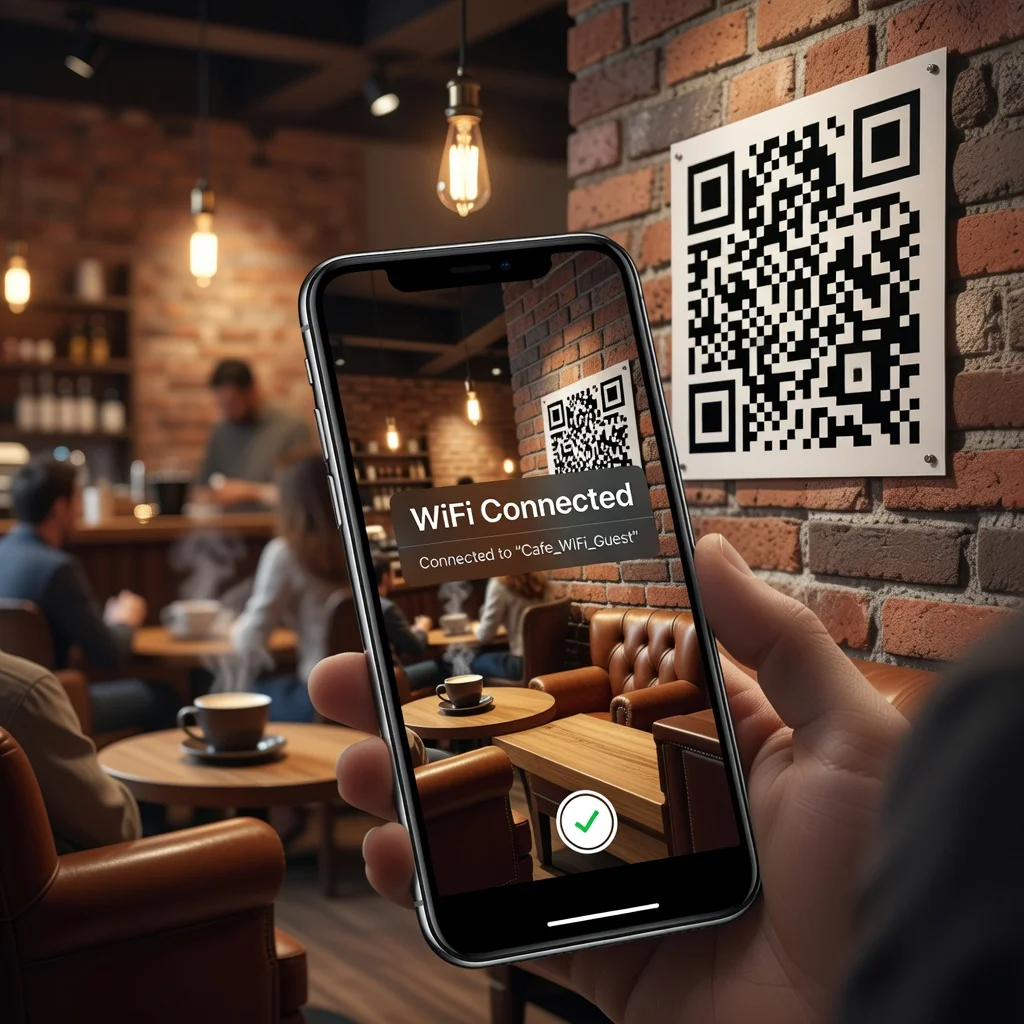
WiFi QR code generator: Share your network password instantly
Tired of guests asking for your WiFi password while you're hosting? A WiFi QR code generator solves this problem instantly. Instead of spelling out complex passwords character by character, visitors simply scan a QR code with their smartphone and connect automatically.
This simple technology has become essential for homes, offices, cafes, and restaurants worldwide. Let's explore how WiFi QR codes work and why they're so effective.
How WiFi QR codes work
WiFi QR codes use the WPA2 security standard to encode your network name (SSID), security type, and password into a single scannable image. When someone scans the code with their phone's camera, it automatically opens their WiFi settings and connects them to your network without requiring manual entry.
The process is seamless across iOS and Android devices. Most modern phones recognize QR codes natively, no app installation needed. The entire connection process takes just 2-3 seconds, making it incredibly user-friendly.
Key benefits of WiFi QR codes
- Zero Friction: Guests connect without asking, typing, or troubleshooting. No more password confusion or typos.
- Security: Your password stays visible only to people physically present. You avoid shouting it across the room.
- Time Saving: Print one code, post it on your wall or table, and handle hundreds of connections effortlessly.
- Professional Image: Businesses that offer quick WiFi access appear more customer-friendly and tech-savvy.
- Flexible Display: Frame it, print it, add it to your business card, or display it on a poster.
Perfect use cases for WiFi QR codes
WiFi QR codes work beautifully in multiple environments. Coffee shops use them to reduce frustration and speed up the check-in process. Hotels display codes in rooms so guests connect instantly without calling the front desk. Corporate offices place codes in conference rooms for visitor WiFi access. Even homes benefit, when family visits, they scan instead of asking repeatedly.
Restaurants, gyms, doctor's offices, and retail stores all benefit from WiFi QR codes. Any location offering guest internet access becomes more efficient and user-friendly.
Step-by-step: Creating your WiFi QR code
Creating a WiFi QR code is straightforward with the right generator. Here's the process:
- Enter your network name (SSID) exactly as it appears on your devices
- Select your security type (usually WPA2 or WPA3)
- Enter your WiFi password
- Generate the code
- Download, print, or share the image
The entire process takes under a minute. No technical expertise required.
Security considerations
One common concern: is encoding your password in a QR code safe? Yes, for several reasons. First, anyone scanning your code already has physical access to your location, so they could likely guess your password anyway. Second, the code itself doesn't transmit data over the internet, it's just an image. Third, QR codes can only connect devices to WiFi; they can't grant access to files or personal devices.
For maximum security, consider creating a separate guest network with a different password than your main network. This prevents visitors from accessing sensitive devices while maintaining convenient access.
Customization options
Modern WiFi QR code generators offer customization. You can add logos to the center of the code, adjust colors to match your branding, or adjust the error correction level. These features don't compromise functionality, the code scans perfectly even with decorative elements.
Common mistakes to avoid
When creating WiFi QR codes, avoid these pitfalls. Don't include spaces at the beginning or end of your network name, this causes connection failures. Double-check your password character-by-character; one typo makes the entire code non-functional. Test your code on multiple devices before printing. And remember to update your code if you ever change your network password.
Mobile devices and compatibility
WiFi QR codes work on virtually all modern smartphones. iPhone users need iOS 11 or later (most devices from 2015 onward). Android users need Android 6 or later. The camera app recognizes the code automatically, no special QR code reader app necessary on most modern devices.
Printing and display tips
Print your WiFi QR code on high-quality paper for best scanning results. Avoid glossy finishes that create glare. Size matters, codes should be at least 2x2 inches for reliable scanning from a typical phone distance. For outdoor display, use weatherproof materials. If framing the code, ensure the glass isn't reflective.
Updating your WiFi QR code
Changed your WiFi password? Generate a new code and replace the old one. Changing to a new router? Update the SSID if it's different. These changes take just minutes and ensure your code continues working perfectly.
Advanced features
Some generators offer additional features like automatic code regeneration if you change your password, analytics to track scan counts, or integration with business WiFi networks. Explore these options if you need more sophisticated functionality.
Ready to create your WiFi QR code? Use our free generator →