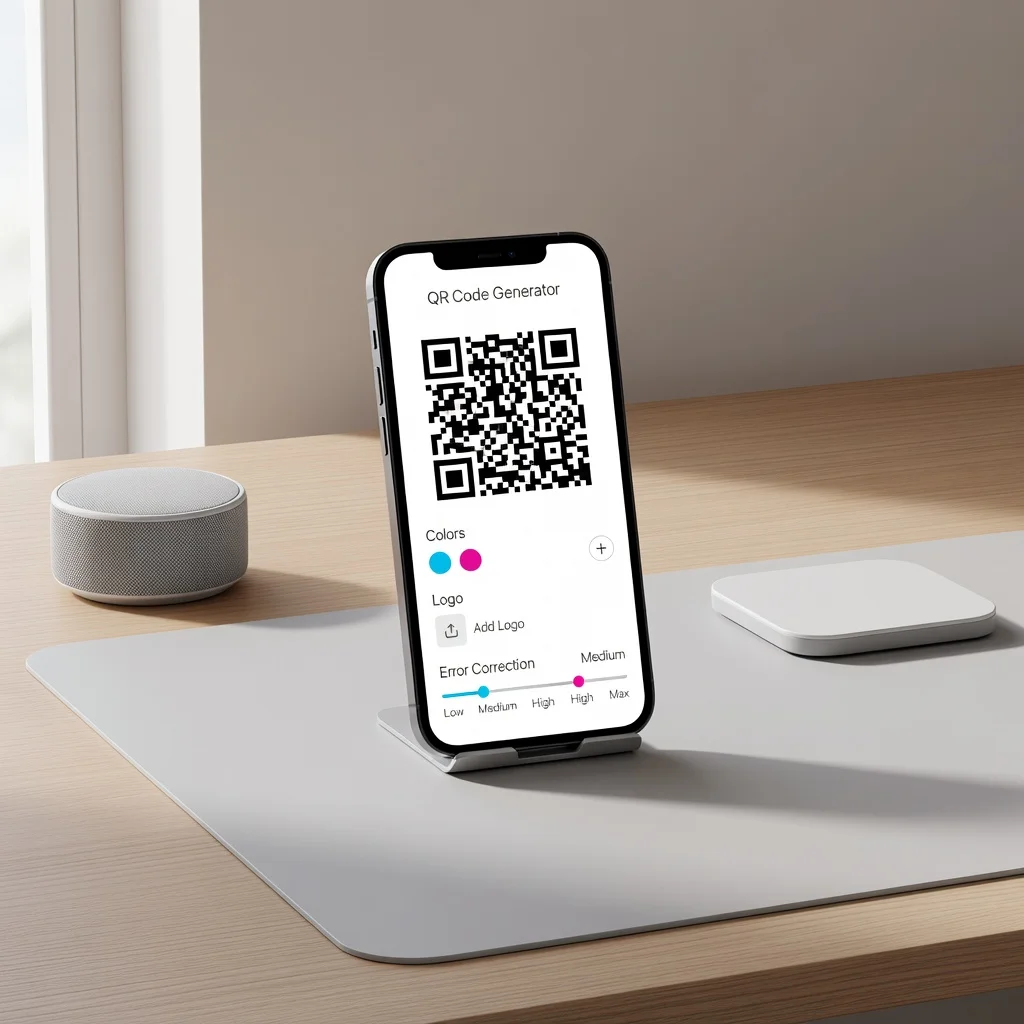
How to customize a QR code: Colors, logos, and frames
A plain black and white QR code works great. A customized one with your brand colors, a logo, and a frame looks great and works even better. When a code matches your brand, people scan it without thinking. This guide covers how to customize without breaking your code.
Why customize your QR code?
- Brand Consistency: A code in your brand colors feels like part of your brand, not a generic addition
- Visual Appeal: Customized codes attract attention on flyers, business cards, and packaging
- Professional Image: A thoughtful design makes you look intentional, not like you grabbed a code generator and forgot about it
- Increased Engagement: People are more likely to scan codes that look intentional and branded
Customization options and risks
Colors: The safest customization. You can change the dark color (pattern) and light color (background). High contrast is key, dark on light, or light on dark. No pastels. No light gray on white.
Logo: Works when done right. Keep it small (20-25% of the code), center it, and test it before printing.
Frames: Some generators let you add a border around the code. Avoid frames that touch the code itself, leave white space. A frame that says "Scan Me" is fine. A frame that covers part of the pattern is not.
Patterns or textures: Skip these. They reduce contrast and make codes harder to scan.
Color combinations that work
- Black pattern, white background: The original. Works perfectly every time
- Dark blue pattern, white background: Professional, branded, still high contrast
- Dark pattern, light background: Works as long as there's strong contrast. Dark red on white? Yes. Dark red on pink? No
- White pattern, dark background: Inverted versions work fine. White on black, white on navy blue, both work
Color combinations to avoid
- Low contrast: Light gray on white, light blue on light background, these don't scan
- Similar colors: Blue on purple, red on orange, too close in tone
- Pastel anything: Pastel colors are by definition low contrast. Skip them
- Gradients: Color gradients make some areas light and some areas dark, breaking the contrast needed for scanning
Step-by-step: Customizing your code
- Generate your code: Create the code normally with your content
- Open customization options: Click "Customize" or "Design" in your QR code generator
- Change colors: Pick a dark color for the pattern and light color for the background. Make sure there's clear contrast
- Add logo (optional): Upload your logo and resize it to about 20-25% of the code. Center it
- Add frame (optional): If you want text like "Scan Me" around the code, add it as a border outside the white space
- Preview: Most generators let you see how it looks before downloading
- Test: Download and scan it from different phones before printing
- Download high resolution: Get a PNG or SVG version, not a small JPG
Testing your customized code
Customization adds variables. Test your customized code more thoroughly than a plain one. Scan it from:
- Different phones (your iPhone and your friend's Android)
- Different distances (1 foot away, 3 feet away)
- Different lighting (bright room, dim room, sunlight)
- Different angles (straight on, slightly sideways)
If it fails any of these tests, your customization is too extreme. Go back and reduce the color difference or make the logo smaller.
When customization goes wrong
The most common mistake: customizing too aggressively. You pick a cool color combination that looks great but doesn't scan. Solution: dial it back. Make the contrast even more extreme. If dark blue on white doesn't work, try dark blue on white with even more saturation. Or stick with black and white if your color choice isn't working.
Frames and text around your code
A frame around your code is fine as long as it doesn't touch the code itself. A border with "Scan Me" or your website URL around the edges? Perfect. A border that covers the edges of the pattern? That breaks the code.
The rule
Customize your QR code so it matches your brand, but not so much that it stops working. High contrast, small logos, frames that don't touch the pattern. Test before printing. If it scans from multiple phones in different lighting, you've nailed it.
Create your customized QR code now and test it thoroughly.