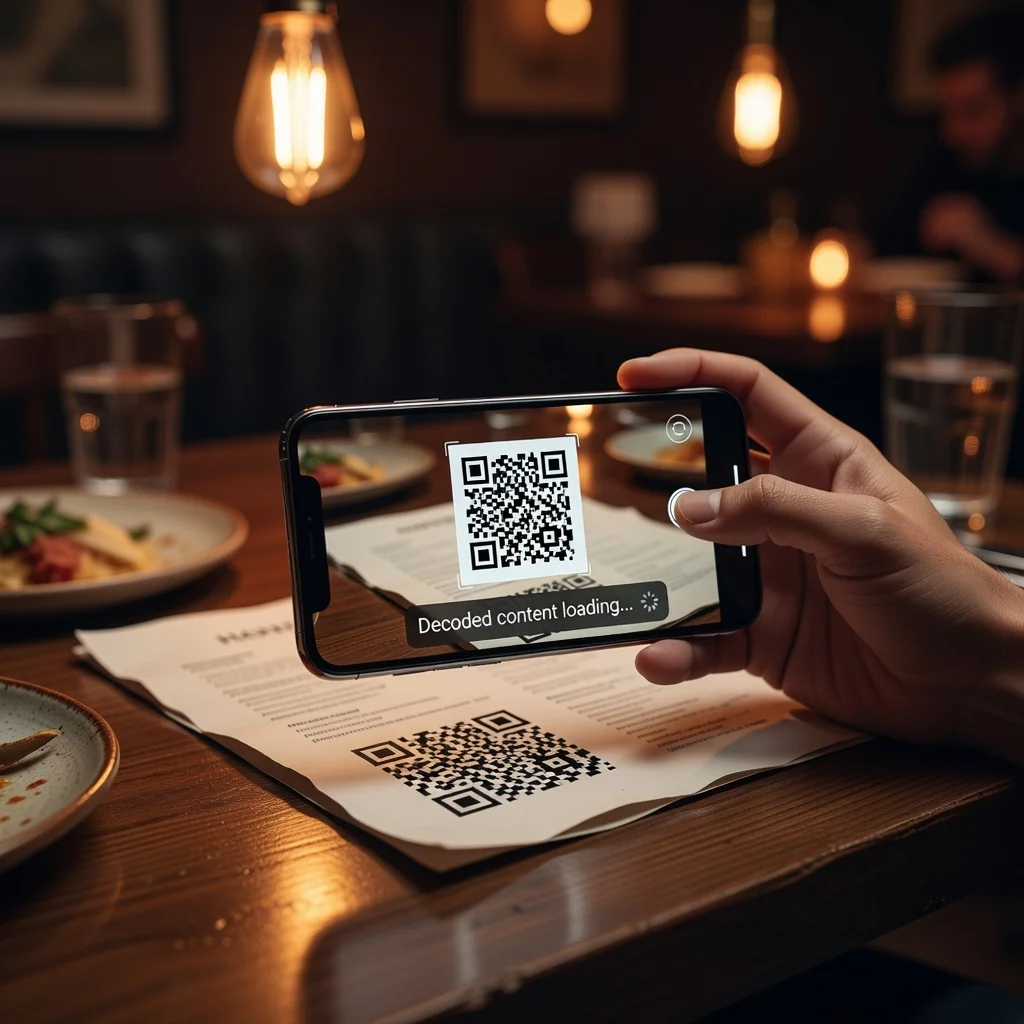
How to scan a QR code on iphone and Android
Scanning a QR code used to require a separate app. Now it's built into your phone's camera. Point at a code, wait a second, and something happens, your phone opens a website, loads contact info, or connects to WiFi. This guide covers exactly how on both iPhone and Android.
Scanning QR codes on iphone
Using the camera app (the normal way)
Your iPhone already has QR code scanning built in. No app download needed.
- Open the Camera app
- Point it at the QR code
- Hold steady for about 2 seconds
- A notification appears at the top of the screen
- Tap the notification to open whatever the code links to
Scanning QR codes on Android
Using Google lens (the simplest way)
Most Android phones have Google Lens built in.
- Open your camera app or Google Lens (it's often accessible directly from the camera app)
- Point at the code
- A link appears at the bottom, tap it to open what the code links to
Using your browser
If your Android phone doesn't have QR scanning, use Google Chrome:
- Open Chrome and go to any webpage
- Long-press the address bar and select "Lens"
- Point at the QR code and tap the link that appears
What happens after you scan
The QR code leads to whatever it was set up to do:
- Website link: Your browser opens to that website
- Contact info: Your phone asks if you want to save the contact
- WiFi: Your phone automatically connects to the network
- Email or text: Your phone opens the email or messaging app with a pre-filled message
- Plain text: The text displays on your screen
Troubleshooting: Code won't scan
Code is blurry: Move closer or step back. Your phone's camera needs to focus on the code.
Code is too small: Move closer or zoom in slightly. Codes smaller than a postage stamp are hard to scan.
Lighting issue: Move away from direct sunlight or shadow. Harsh light can wash out the contrast. Better lighting = faster scans.
Phone camera needs cleaning: If your camera lens is dusty, QR codes won't scan clearly. Wipe it on your shirt.
Old phone: If your phone is very old, its camera might not support QR codes. Try a QR code scanning app from the app store instead.
Tips for faster scanning
- Decent lighting: QR codes scan fastest in normal indoor or outdoor light, not in darkness or harsh sun
- Still phone: Shaky hands mean shaky focus. Hold steady for a moment
- Clean camera: A dusty lens slows down scanning. Wipe it occasionally
- High contrast: Black codes on white backgrounds scan faster than light gray on light pink. This helps the creator, not you
Privacy and QR codes
Scanning a QR code is like clicking a link. You're trusting that the destination is legitimate. Don't scan random codes from strangers, especially ones that appear over legitimate codes (called "code covering"). If you're unsure about a code, ask where it came from.
That's it
Scanning QR codes is now as simple as pointing your camera at them. No app to download, no buttons to tap in advance. Point, wait, tap. That's the whole process. Most people get it instantly.
Create QR codes for others to scan, it's just as easy.