QR code file formats: PNG vs SVG vs PDF
When you generate a QR code, you're offered multiple download options: PNG, SVG, PDF, sometimes others. Each format has distinct advantages and disadvantages depending on whether you're using the code digitally or printing it. Choosing the wrong format can result in poor quality, pixelation, or codes that don't scan as reliably as they should. Understanding the differences ensures your codes look sharp and function properly across whatever medium you're using.
PNG format (raster image)
PNG is a raster format, it stores images as a grid of colored pixels. A PNG QR code defines a specific resolution, like 200×200 pixels or 500×500 pixels, and encodes the code into that pixel grid. Every pixel contains color information, and the entire image is a static snapshot. PNG files are small due to compression, work on literally every platform, and can be easily embedded in documents, emails, and websites. The limitation is that raster images don't scale elegantly, enlarge a PNG beyond its native resolution and it becomes pixelated and blurry.
PNG advantages
- Universal compatibility, every device, browser, and application can open and display PNG files
- Small file sizes due to lossless compression, easy to email or upload
- Works perfectly for digital display, websites, email, social media, PDFs
- Easy to embed in documents, spreadsheets, web pages without special software
- No special viewing software required, standard image viewers handle PNG natively
- Color quality is consistent and reliable across different devices and browsers
PNG disadvantages
- Resolution-dependent, scaling beyond the original resolution causes pixelation
- Quality degrades noticeably when enlarged. A 200×200 PNG enlarged to 4 inches looks fuzzy.
- Print quality depends on resolution, you need 300 DPI minimum for professional printing
- Scaling down reduces effective scannability on small prints
- Less ideal for professional print applications where quality is critical
- If you need the code at different sizes, you have to export multiple versions at different resolutions
SVG format (vector graphics)
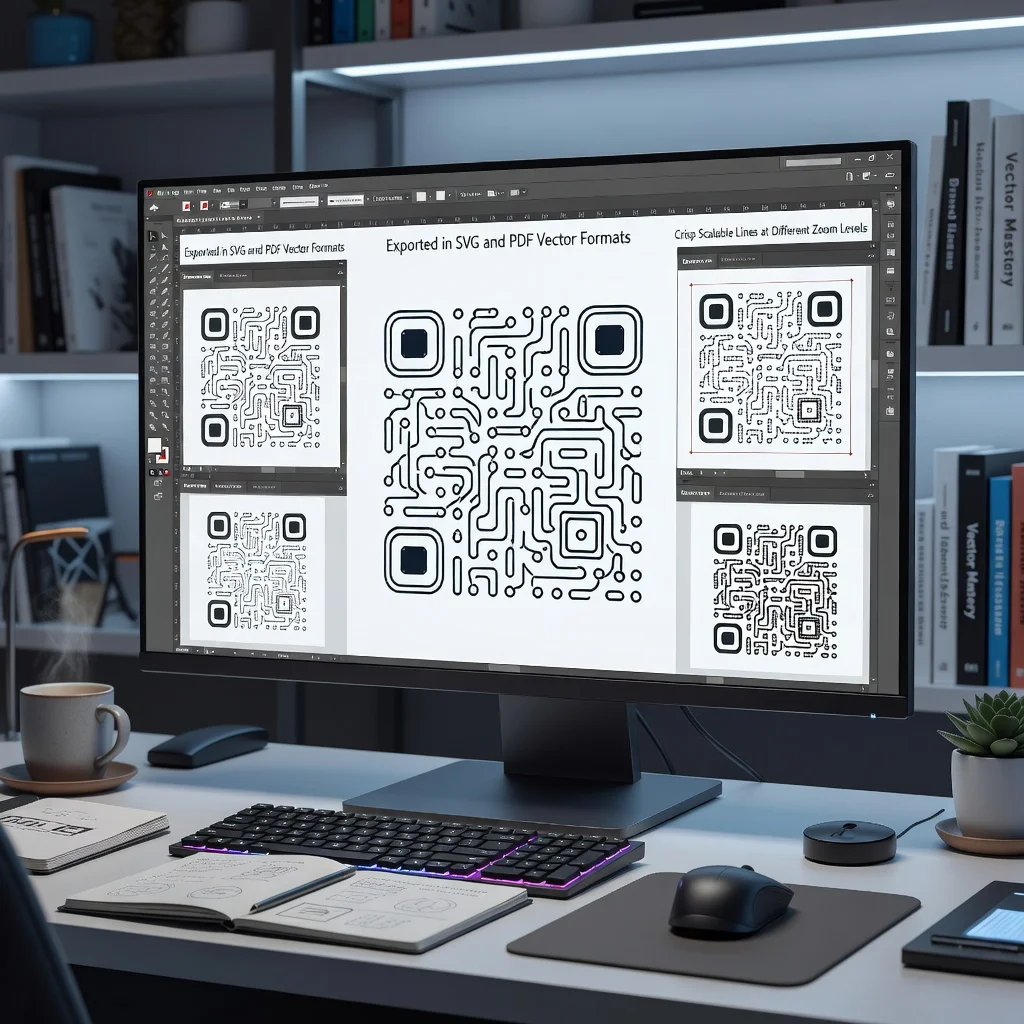
SVG (Scalable Vector Graphics) stores images as mathematical equations rather than pixels. An SVG QR code describes the position and size of each black and white square as geometric shapes. Because everything is mathematical, not pixel-based, SVG scales infinitely without any quality loss. A 1-inch SVG code enlarged to 10 inches remains perfectly crisp. SVG is excellent for professional print work where you need precise, scalable graphics.
SVG advantages
- Scales infinitely without quality loss, use the same file at any size from tiny to billboard
- Ideal for print applications, professional and high-quality at any resolution
- Smaller file sizes than raster equivalents for codes with simple geometry
- Pure mathematical definition means it remains scannable at any size
- Professional print houses prefer SVG for graphics like QR codes
- Edit-friendly, you can open in design software and modify properties if needed
SVG disadvantages
- Not universally supported by all applications, some email clients and browsers have limited SVG support
- Requires special software to edit, can't modify in standard image editors like Preview or Paint
- Not ideal for web display on devices with older browsers or limited SVG support
- Email embedding can be problematic, some email clients strip SVG files or display them incorrectly
- File size can be larger than PNG for very simple codes depending on compression
PDF format (portable document)
PDF is a document format that can contain images, text, and other elements. A PDF QR code is essentially a code stored in a PDF wrapper. PDFs are excellent for print distribution and professional applications. They maintain formatting and quality across different systems. PDFs can contain vector or raster images depending on how the code was exported.
PDF advantages
- Professional format, standard for business documents and print distribution
- Maintains formatting and quality across different systems and devices
- Can be opened on virtually any device, universal compatibility like PNG
- Ideal for email distribution to non-technical users (they can open PDF attachments)
- Professional print houses are set up to work with PDFs
- Can include additional information alongside the QR code in a single file
PDF disadvantages
- Heavier file size than PNG for a single QR code
- Overkill for a simple QR code if you don't need document context
- If the PDF is raster-based, it has the same scaling limitations as PNG
- Need a PDF reader, though this is almost universally available, it's one more dependency
- Embedding in web pages is less straightforward than PNG
Choosing the right format for your use case
Website or Digital Display: Use PNG. It's universally supported, loads instantly, requires no special software, works in all browsers. A standard 200-300 pixel PNG works perfectly for on-screen use.
Email Distribution: Use PNG or PDF. Both are universally supported in email. PNG is lighter weight, PDF feels more professional if it's a formal document.
Professional Printing: Use SVG if you need different sizes at print quality. Use PDF if you're submitting to a print house that prefers PDFs. Avoid PNG unless it's specifically 300 DPI or higher resolution.
Business Cards or Small Printed Items: SVG is ideal. You generate once and can print at any final size without quality loss.
Packaging or Large Print Materials: SVG is superior. Guarantees quality whether your final print size is 1 inch or 12 inches.
Social Media: Use PNG. Social platforms understand PNG natively and display consistently.
Microsoft Office Documents (Word, PowerPoint): PNG or PDF work fine. PNG is lighter, PDF feels more integrated into document workflows.
Resolution specifications for different applications
Screen Display (Website, Social Media): 72-150 DPI. A 200×200 pixel PNG is sufficient.
PDF Documents: 150-300 DPI depending on quality requirements. 150 DPI works for PDFs viewed on screen. 300 DPI for printed PDFs.
Professional Print (Business Cards, Packaging, Posters): 300 DPI minimum. This applies to PNG files. SVG has no DPI limitation because it's vector-based.
Common mistakes and how to avoid them
Using Low-Resolution PNG for Print: Download your PNG at 300 DPI or higher if printing. A 72 DPI PNG will look pixelated when printed. When in doubt, choose SVG for print.
Enlarging PNG Beyond Intended Size: If you exported a 200×200 PNG and then enlarged it to 4 inches in your design software, it becomes pixelated. Export at the size you need, or use SVG.
Using SVG When Client Doesn't Support It: If you're sending the file to a client or vendor who works with standard image formats, PNG might be safer. SVG requires design software or specific viewers.
Submitting Wrong Format to Print House: Call your print provider and ask what format they prefer. Many prefer PDF, some prefer SVG, some work with high-resolution PNG. Ask before submitting.
The pragmatic approach
For Most Users: PNG is fine. Download at 200 pixels for screen use, 300+ DPI for print. It covers 90% of real-world needs.
For Professional or Print-Heavy Use: SVG. One file, scales perfectly, works great at any size, professional quality guaranteed.
For Professional Submission: Ask what your printer or client prefers. Then export in that format.
Format conversion: Can you convert between formats?
Converting from PNG to SVG (rasterization to vectorization) is complex and often produces poor results. The mathematics of converting pixel data back to vector equations introduces artifacts. Avoid this if possible.
Converting from SVG to PNG is straightforward and produces clean results. SVG renders as pixels at whatever resolution you specify.
Converting to PDF is supported by most design software and is generally straightforward regardless of source format.
When in doubt: generate in your preferred format from the start rather than converting after the fact.
Conclusion
PNG works for most applications, web, email, basic printing. SVG is superior for professional print applications where you need pristine quality at any size. PDF is appropriate when you're distributing formally or as part of a document. Understand the trade-offs and choose based on your actual use case. Generate at proper resolution, test before submitting to print, and you'll have QR codes that work perfectly regardless of format.
Try it now at FreeQRCodeGenerator.com →