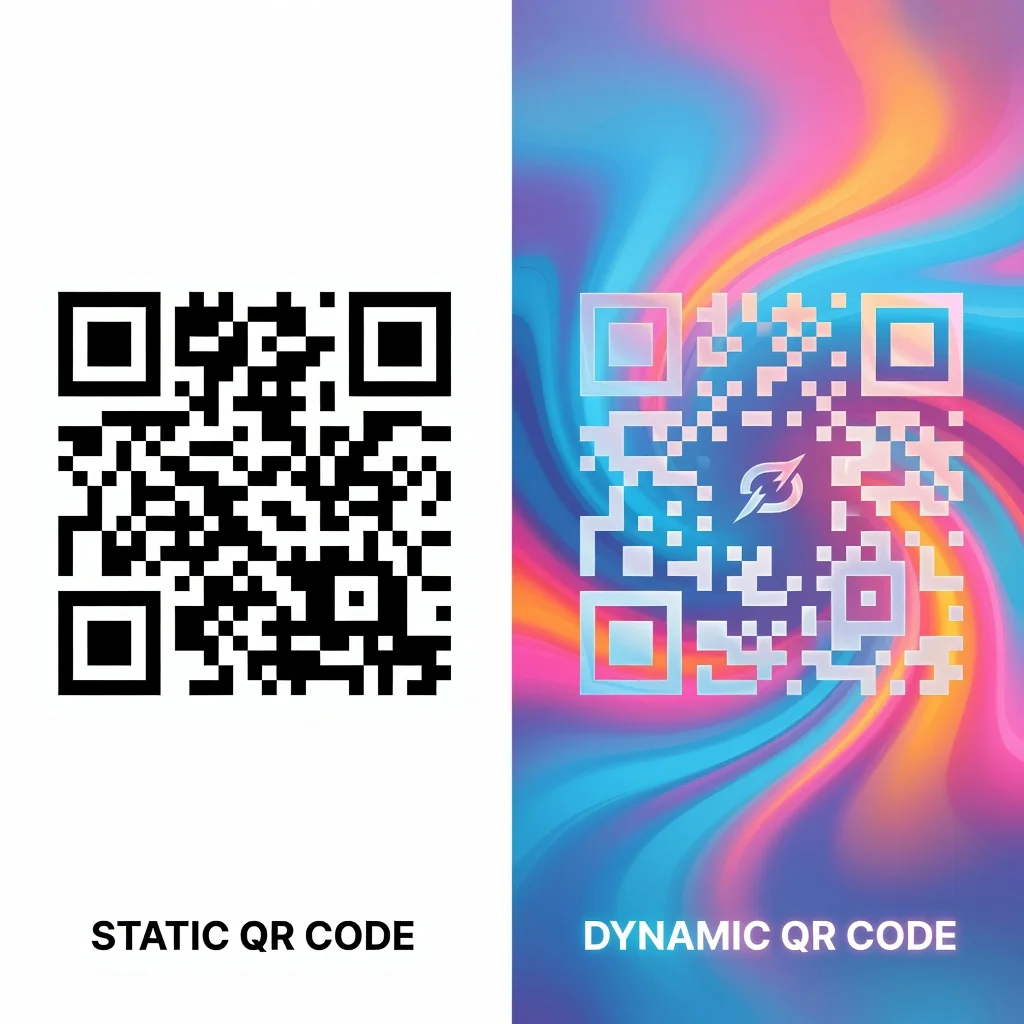
Adding logos to QR codes: Branding without breaking functionality
A QR code with your company logo in the center looks polished and brand-aware. It's recognizable as yours at a glance. But logos obscure the very data you're trying to encode. If you're not careful, the logo breaks scannability entirely. The good news is that it's possible to embed logos and maintain functionality, you just need to understand the technical requirements. Most logo embedding failures aren't because it's impossible, they're because people ignored the requirements.
How logos affect QR code scanning
A logo placed in the center of a QR code covers approximately 15-25% of the code's data area. That's a significant chunk removed. This obstruction directly removes encoded information from the pattern. Normally, that would break the code. But QR codes are specifically designed with error correction that allows recovery even when substantial portions are damaged or missing. The key to logo-embedding is ensuring your error correction is robust enough to handle the obstruction.
Error correction level: The critical factor
For QR codes with logos, you must use Level H error correction (30% error recovery). This is not optional. Level H adds enough redundancy that the code can lose up to 30% of its data and still scan successfully. A 20% logo obstruction falls within that threshold. Using anything less than Level H will likely result in scanning failures. This is the single most important technical requirement for logo embedding. Choose Level H or don't embed a logo, there's no middle ground that works reliably.
Logo size guidelines
- Maximum size: Logo should not exceed 20-25% of the total QR code area. Larger logos exceed the error correction capability.
- Recommended size: 15-20% of the total code area for optimal balance between brand visibility and scannability.
- Minimum clearance: Logo should never touch or overlap the three corner position detection markers (the large squares in three corners). Those markers are critical for scanner orientation.
- Safe zone: The innermost 50% of the code is safest for logo placement. Logos near the edges risk obscuring critical data.
Logo design best practices
Contrast: Your logo needs sufficient contrast against the code modules behind it. A white logo on white modules won't be visible. A dark logo needs to stand out clearly against the pattern. Test this carefully.
Shape Considerations: Square or circular logos work well because they fit cleanly in the center of a square code. Logos with extreme aspect ratios or irregular shapes can create scanning problems depending on placement.
Simplicity: Complex logos with fine details can interfere with module recognition. Simple, solid logos work better than detailed ones. Your simplified logo might work where your full-detail logo would fail.
Background Considerations: Some generators recommend adding a white square background behind your logo to provide contrast. This is often a good approach, a white square with your logo centered provides clear contrast against whatever code modules are behind it.
Implementation steps
Step 1: Choose your content and code size
Determine what your code should link to. Generate the code at a reasonably large size, at least 1.5" × 1.5" or 200 pixels. Larger codes give you more margin for logo placement without breaking scannability.
Step 2: Select level h error correction
This cannot be skipped. When generating your code, explicitly choose Level H error correction. Most generators have this as a dropdown or option. Make sure Level H is selected.
Step 3: Design your logo
If you're creating a logo specifically for embedding, keep it simple and bold. Use high contrast. If embedding an existing logo, consider simplifying it or creating a variation specifically for use in QR codes.
Step 4: Place the logo carefully
Center it precisely in the middle of the code. Make sure it's not touching the corner position markers. Keep it to 15-20% of the code area. Many generators have built-in logo placement tools that handle this automatically.
Step 5: Test thoroughly before deployment
This is critical. Generate a test code, save it, print it, and scan it from multiple phones and at various angles. Scan from different distances. Test in different lighting. If it fails on any test, adjust the logo size or placement and retest. Don't deploy a logo code that doesn't pass comprehensive testing.
Common logo-embedding failures and why they happen
Using Less Than Level H Error Correction: This is the most common failure. People choose Level M or Q without realizing the error correction level needs to be maximum. The logo obstruction exceeds the recovery capability and the code fails.
Logo Too Large: A logo exceeding 25% of the code area is almost guaranteed to fail even with Level H. The obstruction simply exceeds recovery capability.
Poor Logo Contrast: A light logo on light modules or a dark logo on dark modules becomes invisible or ambiguous to scanners. The logo itself interferes with module recognition.
Logo Touching Corner Markers: Even slight overlap with position detection markers can break recognition. Keep logos well clear of those critical markers.
Alternatives to logo embedding
If logo embedding is causing problems, consider these alternatives:
Border/Frame Approach: Instead of embedding the logo, place it adjacent to the code, above, below, or beside it. The code stays fully functional and the logo is clearly visible. This is actually the most reliable approach.
Branded Background: Place the code on a branded background or pattern without obscuring the code itself. This provides branding without obstruction.
Simplified Marking: Instead of embedding your full logo, embed a small icon or simplified mark, 20% of the code area or less. This provides branding while minimizing obstruction.
Real-world application: Business cards
Scenario: Business card with contact QR code and company logo.
Best Approach: Border method. Place the QR code in one corner and the logo separately in another area. This gives you full scannability and clear branding without any compromise.
If Embedding Seems Necessary: Use a very simplified logo (15% of code area), Level H error correction, white background behind the logo, and test extensively before printing.
When logo embedding actually makes sense
Logo embedding works best for large codes where you have room. A 4" × 4" code can easily accommodate a 0.75" × 0.75" logo with room to spare. A 1" × 1" code trying to embed the same logo becomes problematic. If you're forced to work with small codes, the border/frame approach is superior.
The technical summary
Logos are possible but require precision. Level H error correction, logo size 15-20% maximum, careful placement away from corner markers, thorough testing. Skip any of these requirements and expect failures. Follow them and embedding works reliably. It's not magic, it's just respecting the technical constraints of how QR codes function.
Conclusion
Adding a logo to your QR code makes it more branded and recognizable. It's entirely possible to do this successfully. The key is understanding the constraints, especially the Level H error correction requirement, and testing thoroughly before deploying. A logo-embedded code that doesn't scan is worse than no code at all, so get this right before you print thousands of materials.
Try it now at FreeQRCodeGenerator.com →