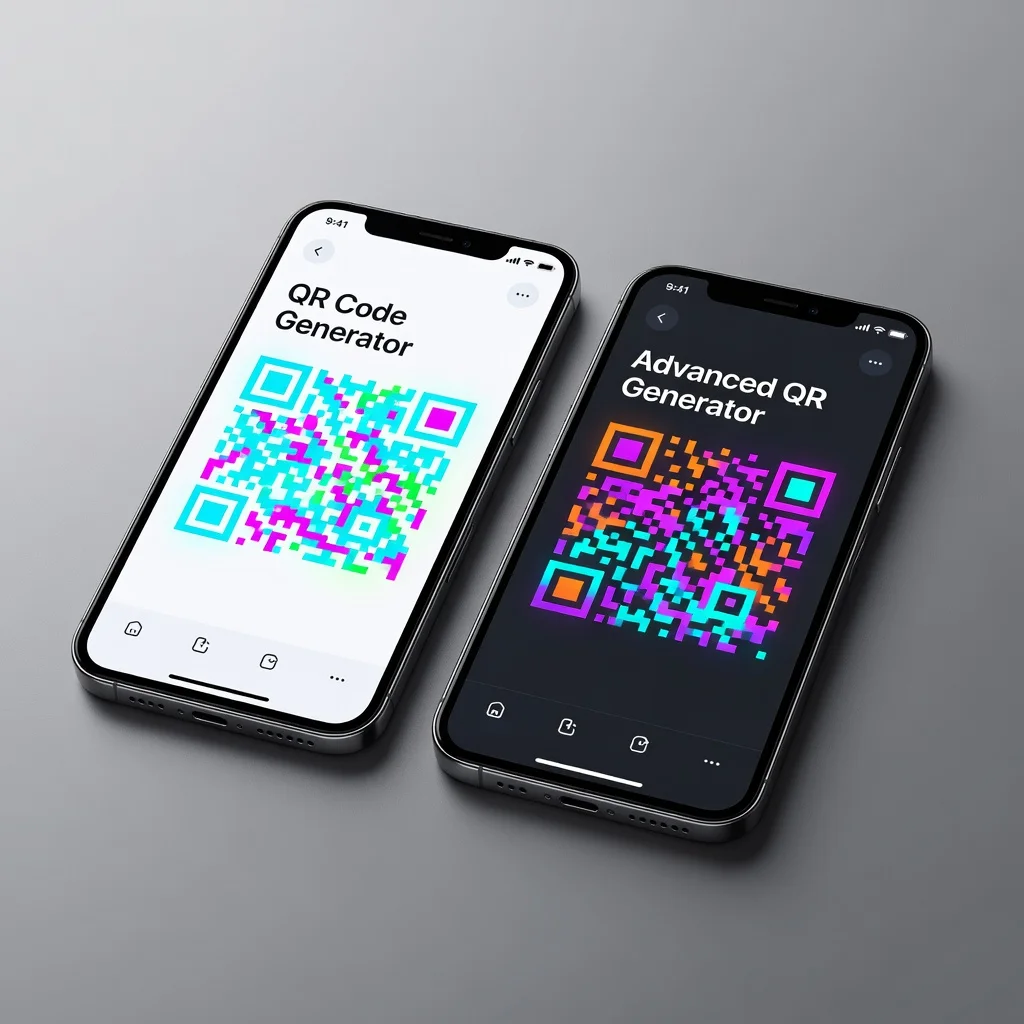
Best QR code generators for Android
Android users have plenty of options. Web browser? Works great. App from Google Play? Many good ones exist. Native Android features? Limited. The simplest answer for most Android users is opening Chrome and visiting a web generator. No installation. No waiting. Just generate and download. But if you create codes regularly, an app might make sense.
Native Android QR code generation
Unlike iPhone, Android doesn't include native QR code generation in the OS. Google Lens has some capability, and Chrome offers basic functions, but nothing comprehensive. For actual QR code generation, you'll need an app or web service. This means most Android users choose between web browsers and dedicated apps.
Web-based generators on Android
The simplest path: open Chrome, visit FreeQRCodeGenerator.com, enter your data, download. Mobile design works perfectly. Customization available if you want it. No installation. No account. No complications. This approach works across every Android device and version.
Advantages of web-based generation on Android
- No app installation or storage requirements
- Works with any Android device and browser
- Immediate access to latest features
- Full customization capabilities available
- Compatible with all file storage options
- Works offline with progressive web app support
Top Android QR code generator apps
QR Code Generator - Scan and Create: Over 10 million downloads on Google Play. Simple generation with color and size options. Free with optional premium features. No account needed. Reliable and straightforward.
Unitag - QR Code Generator: Professional tool. Dynamic codes, analytics, sync across devices. Premium subscription required for advanced features. Pick this if you're serious about QR code management.
QR Code Scanner & Generator: Combines both functions in one app. Free with ads; premium removes them. Lightweight and responsive. Good if you both scan and generate regularly.
Google play top-rated generators
Google Play hosts many QR generators with varying quality. Look for high ratings (4+ stars), lots of reviews, and recent updates. Avoid apps with excessive ads, weird permission requests, or poor reviews. Quality matters here.
App permissions and security
QR generation apps need camera and storage permissions. That's it. Be suspicious of apps requesting contacts, location, or media access for no clear reason. Reputable apps ask only for what they need. Review permissions before installing.
Comparing web browser vs app on Android
Web generation requires internet connection. Apps often work offline. Browsers are faster to access. Apps launch quicker if you use them frequently. For occasional use, Safari Chrome wins. For regular generation, an app is smarter.
File management and sharing on Android
Web-generated codes go to your Downloads folder or preferred storage. Android's file system lets you organize in folders. Share through the share menu, Messages, Email, Drive, social media. Apps follow similar paths with integrated sharing options. Both work fine.
Integration with Android features
Quality apps integrate with Android's Share Sheet, making distribution easy. Some sync with Google Drive for cloud backup. Advanced apps include home screen widgets for quick access. These features matter if you use codes frequently.
Advanced Android app features
Some apps offer batch generation, template-based code creation, or API integration for developers. Most users won't need these. Premium versions typically include advanced features. Consider what you actually need before upgrading.
Recommendations by usage pattern
- Occasional Use: Web browser (FreeQRCodeGenerator.com) - fastest, no installation
- Regular Use: "QR Code Generator - Scan and Create" - balanced features and simplicity
- Professional Use: Unitag - comprehensive features, analytics, and professional tools
- All-in-One Need: "QR Code Scanner & Generator" - handles both needs in single app
- Minimal Requirements: Google Lens for basic code creation
Tips for Android QR code generation
Make sure you have storage space before generating codes. Test generated codes immediately by scanning before sharing. For professional work, consider desktop generation where larger screens help with design. Android file management lets you organize codes in folders for easy retrieval.
Cross-device synchronization
Apps like Unitag sync across Android and iOS. Google Drive integration gives access across devices. Web-based generation works the same everywhere. If you use multiple devices, pick an approach that works across all of them.
Generate QR codes on Android using our mobile-optimized generator. Fast, easy, works on any Android device.