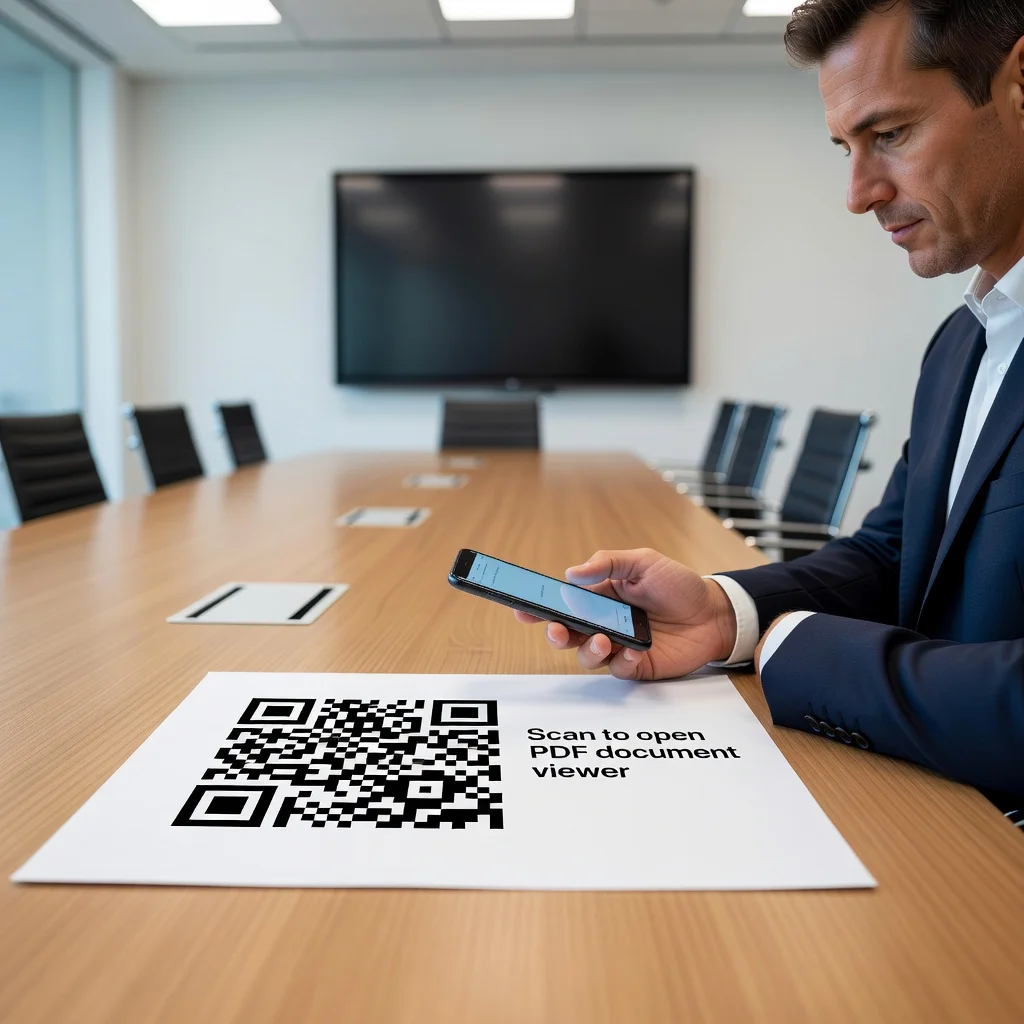
QR code for Google drive: Share files offline instantly
Google Drive is everywhere in modern teams. Documents, spreadsheets, presentations, they live in Drive and you collaborate in real time. But sharing a Drive file still requires explaining a folder name, sending an email, or sharing a link that people have to remember to use. A QR code skips all that. Scan it and the file or folder opens immediately. No email hunting, no "what was that folder called again?" One scan and you're accessing what you need.
Share collaborative documents offline
You're running a meeting. Attendees need to access a shared document, a spreadsheet with real-time data, or a presentation you built together. Instead of emailing a link or asking everyone to search Drive, print a QR code on the agenda or display it on your screen. One scan and everyone's in the same document. You're all looking at the same information, and changes everyone makes are visible to everyone else immediately.
- Create a code for a shared project folder so team members can access all related files
- Link to a specific spreadsheet so clients can view real-time updates
- Use it on printed agendas so attendees can reference shared documents during meetings
- Point to a feedback form in Google Forms where people can submit input
Simplify file sharing at events
You're at a conference, a workshop, or a class. Attendees need the slides, the resource list, the follow-up materials. Print a large QR code on a slide at the end of your presentation. Scan it and attendees have access to a folder with everything you covered. No more flipping through pockets or notebooks looking for a scrap of paper with the download link.
Create a resource hub
Instead of creating individual codes for individual files, create one code that points to a folder full of everything someone might need. One scan and they have access to your templates, your guides, your examples, your tools. If you update or add files to the folder, everyone with the code immediately has access to the new content without you needing to send anything.
Enable team collaboration at scale
You're managing a large team or multiple teams. A single QR code points to a shared Drive folder that contains everything that team needs, project briefs, status reports, templates, guidelines. New team members scan on their first day and have instant access to everything they need to get up to speed. It's one link instead of dozens of individual file shares.
Support remote and hybrid work
Some team members are in the office, some are remote. A QR code on a printed agenda, whiteboard, or sign ensures everyone, no matter where they are, can access the same information. There's no "the remote folks can't see what's on the board" problem. One scan and everyone has the same visibility.
Keeping your drive links organized
Use a dynamic QR code so you can update the Drive link if needed without regenerating the code. Organize your Drive folders clearly so that people know what they're accessing when they scan. If you're creating multiple codes, label them visually so people know which code goes with which content. And regularly audit your shared folders to make sure permissions are correct and outdated files are removed.
Ready to make file sharing seamless? Create your Google Drive QR code and watch collaboration become frictionless across your team.