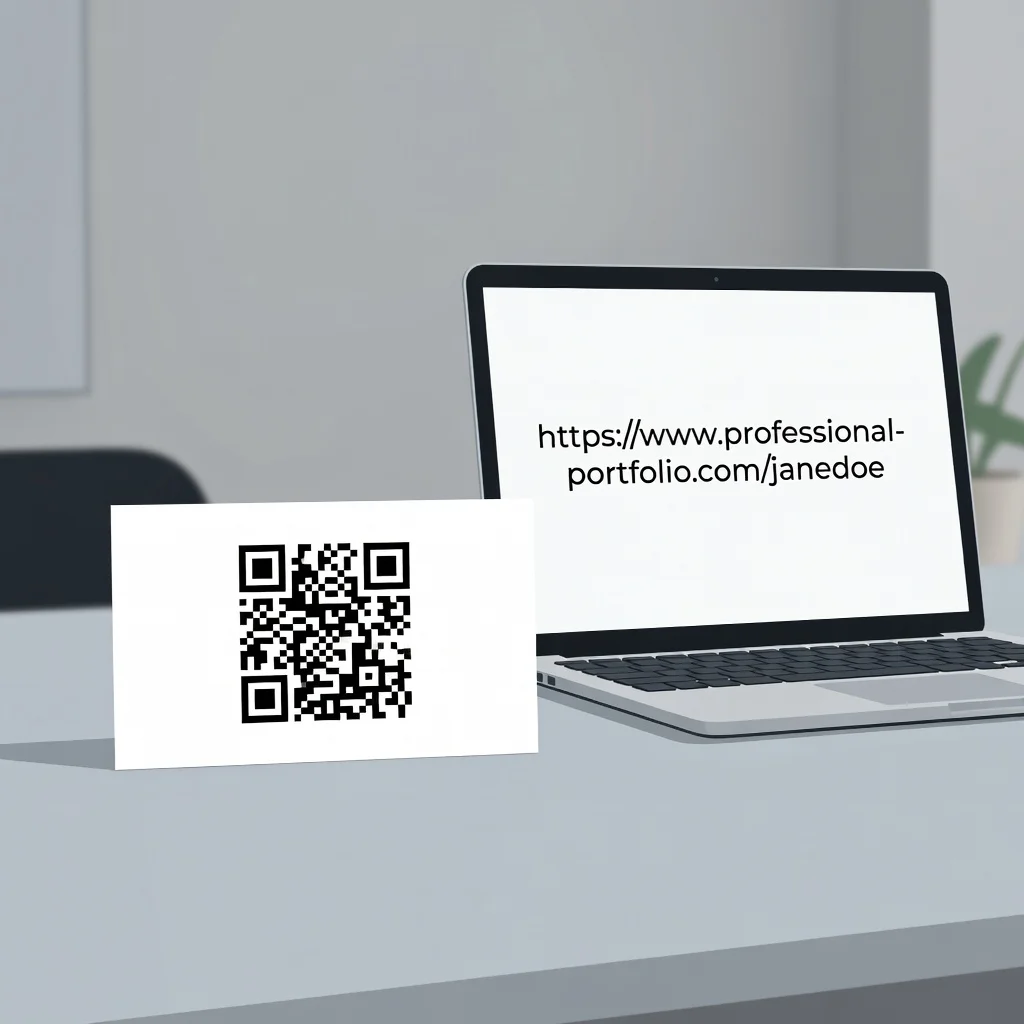
How to put a QR code on a business card
A business card with a QR code does something most cards can't, it transforms a static piece of cardstock into a bridge between the physical and digital worlds. Instead of just handing someone your contact info, they can scan and instantly have it saved in their phone, visit your portfolio, or connect with you on LinkedIn. That's a lot more useful than trying to remember your phone number or squinting at tiny printed text.
Why add QR codes to business cards?
There are practical reasons people actually add these codes:
- Instant Contact Exchange: Someone scans your card and your contact details automatically populate their phone, no manual typing.
- Digital Portfolio: Point to your website, portfolio, or social profiles without cramming everything onto cardstock.
- Lead Generation: Dynamic QR codes let you track how many people actually scanned your card, giving you real data about engagement.
- Modern Professional Look: A well-designed QR code signals you're current with technology, not stuck in 2005.
- Reduce Errors: No more "I think it was 555-1234?" when the information is encoded in a code.
- Flexible Content: Link to a demo video, pricing page, or calendar booking system directly from your pocket.
- Small Edge in Networking: Most cards are forgettable. A functional QR code makes yours memorable.
What should your business card QR code link to?
Contact Information (vCard): Most common and most useful. Someone scans it and your name, phone, email, address, and website automatically save to their contacts. It's frictionless.
Website or Portfolio: Send them directly to your professional site. Better for designers, writers, or anyone whose work speaks for itself online.
Social Media Profile: LinkedIn, Instagram, or whatever platform matters most for your industry. This is especially useful at conferences where LinkedIn networking is the whole point.
Special Offer: A unique discount code or landing page. Retailers and service businesses sometimes use this to drive first-time customers from their card to a special deal.
Video Introduction: A short video of you or your work. Actors, consultants, and personal brands sometimes do this to stand out.
Booking Link: Service-based business? Point directly to your scheduling system. Saves back-and-forth emails.
Choosing the right QR code type
VCard (recommended for business cards)
vCard codes work differently, your contact information is encoded directly into the pattern. When someone scans it, their phone recognizes it as contact data and prompts them to save it:
- Name and job title
- Phone number and email
- Company and website
- Address and social profiles
This is the smart choice for business cards because it solves the actual problem: getting your info into their phone fast.
URL code
A straightforward redirect to a website or landing page. Use this when you want to drive traffic somewhere specific rather than just share contact details.
Hybrid approach
Some businesses point the QR code to a landing page that contains multiple contact options, email, phone, booking link, and social profiles in one place. This gives you flexibility and tracking without making the physical card too complicated.
Designing your business card layout
Size considerations
Standard business cards are 3.5" × 2", not a lot of space. This is where QR code sizing gets real:
- Minimum QR code size: 0.5" × 0.5" (1.27 cm × 1.27 cm), technically scannable but difficult. Most phones need to be held still and close up.
- Realistic Minimum: 0.75" × 0.75" (1.9 cm). This is where it starts feeling reliable to scan in a normal handoff situation.
- Sweet Spot: 1" × 1" (2.5 cm) when space allows. Easy to scan without thinking about it.
Placement options
Bottom Corner: The standard approach. Bottom-right or bottom-left keeps contact info readable while the code stays out of the way. Most people expect to find it there.
Back of Card: No room on the front? Move it to the back with a line of text like "Scan to save my contact." This is increasingly common for modern card designs.
Side Panel: Some designs use a vertical stripe on one side with the QR code centered and a small "Scan Me" label. Looks intentional and design-forward.
Featured Back Design: Minimalist approach, nothing on the front but essentials, and the QR code dominates the back. Works if your brand is clean and modern.
Design principles
- Contrast is everything: Make sure the QR code stands out clearly from the background. A code on a busy pattern or similar colors just won't scan reliably.
- White space matters: Leave a clear border (at least 1/8 inch) around the code. This helps scanners recognize where the code begins and ends.
- Match your aesthetic: The code should feel intentional, not like an afterthought. Align it with your design, color scheme, and overall brand.
- Add context: A small label like "Scan to connect" or "Add to contacts" tells people what to do without being preachy.
- Don't overpower: The QR code is a feature, not the main event. Your name, title, and contact info should still be the focal point.
Step-by-step: Creating your business card QR code
Step 1: Determine your QR code content
What do you want people to access after they scan?
- Your contact information (vCard)
- Your website URL
- Your LinkedIn profile
- A booking link or scheduling page
Step 2: Generate your QR code
Use a QR code generator (like the one on this site). For vCards, select the "Contact" or "vCard" option and fill in your actual information. For URLs, just paste the link.
Step 3: Customize the code
This is optional but worth considering:
- Match your brand colors if you want, just keep contrast strong enough to scan reliably.
- Add your company logo if your generator supports it, but keep it small and centered.
- Choose styling that actually fits your brand, not just what looks technically cool.
Step 4: Download at high resolution
Download as PNG or PDF at 300 DPI minimum. This matters if you're printing professionally. Low-res files look pixelated and might not scan well after printing.
Step 5: Incorporate into card design
Use your design software (Adobe Illustrator, Canva, even good presentation software) to place the QR code on your business card template. Size and position it according to your design choices.
Step 6: Test before printing
Print a test card, seriously. Grab your phone, scan it with multiple devices if possible. Make sure it works before you order 500 cards. QR code quality issues only show up on the actual print.
Design tips for professional results
Color matching
The Safe Choice: Black QR code on white background. It works every time, looks professional, and you'll never have scanning issues.
If You Want Brand Colors: Make sure there's at least 50% brightness difference between the code color and the background. A dark navy code on light gray works. A dark teal code on a tan background? That's risky.
Avoid: Placing colored codes on patterned backgrounds, textured materials, or colors that are visually similar in brightness. These look cool in design mockups but scan terribly in reality.
Typography around the code
If you add a call-to-action, keep it simple and close to the code:
- "Scan to save contact" (clear and literal)
- "Connect with me" (for LinkedIn codes)
- "Learn more" (for website codes)
- Use a clean font that matches your card design, nothing trendy that will date your cards in two years.
Logo integration
If you're adding your company logo to the QR code:
- Keep it small, 5-10% of the QR code area at most.
- Place it dead center of the code.
- Make sure there's clear contrast between the logo and the code pattern behind it.
- Test it before you print. Logos sometimes break scannability if not done carefully.
Business card QR code best practices
Keep Your Destination Relevant: Your business card is about connecting professionally. Don't link to something random. Your website, contact info, or LinkedIn makes sense. A funny cat video doesn't.
Test Everything: Seriously. Scan the test card from multiple phones, different lighting, different distances. If it doesn't work reliably, adjust the size or contrast.
Keep Traditional Info Visible: Not everyone scans QR codes immediately. Someone at a networking event might pocket your card and scan it later, or just want to call you. Keep your phone number and email on there.
Verify Mobile Experience: If your code links to a website, make sure that website looks good and loads fast on mobile. Nothing worse than someone scans your code and gets sent to a desktop-only site.
Update Links Carefully: For dynamic QR codes, make sure the link destination is permanent. For static codes, choose stable URLs. A link that breaks ruins the whole point of having the code.
Popular business card QR code applications
Sales Representatives: vCard with your full contact info plus your company website. Makes follow-up easier.
Freelancers and Consultants: Link to your portfolio, booking calendar, or LinkedIn profile. Shows your work upfront.
Real Estate Agents: Link to property listings, virtual tour platform, or your contact scheduling system. Major time-saver.
Event Professionals: Link to event details, registration page, or networking platform. Useful before and after the event.
Food and Hospitality: Link to menu, reservation system, or contact info. Especially useful for restaurants and catering businesses.
Printing your business cards
Home Printer: Acceptable if you have quality inkjet and good cardstock. Better for small personal runs than bulk orders. Don't expect professional results.
Local Print Shop: Usually gives good results at reasonable prices. Bring your design as a PDF at 300 DPI. They'll handle the technical details.
Online Printing Service: Economical for larger quantities. Services like Vistaprint or Minted handle everything. Prices are low, which is why everyone uses them.
Professional Print House: Worth it if you're serious about quality and brand impression. They manage color accuracy and material quality that services can't match.
Troubleshooting common issues
QR Code Won't Scan: Probably too small or insufficient contrast. Try reprinting the test with a bigger code (at least 0.75" × 0.75") or darker color on a lighter background.
Scans but Shows Wrong Info: For vCards, you can't fix a static code after it's printed. Delete it and generate a new one with correct information. This is why testing matters.
Uneven Print Quality: Pixelated or blurry code likely means low-resolution source file. Regenerate the QR code and download at 300 DPI, or contact your printer about file specs.
Conclusion
A QR code on your business card bridges an obvious gap, physical cardstock and digital access. Done right, it makes your card actually useful instead of just decorative. Size it properly, test it carefully, and keep the design clean, and people will scan it. Skip these steps and you'll just have a confusing square on your card.
Try it now at FreeQRCodeGenerator.com →